
Oggi Pizza and Grill
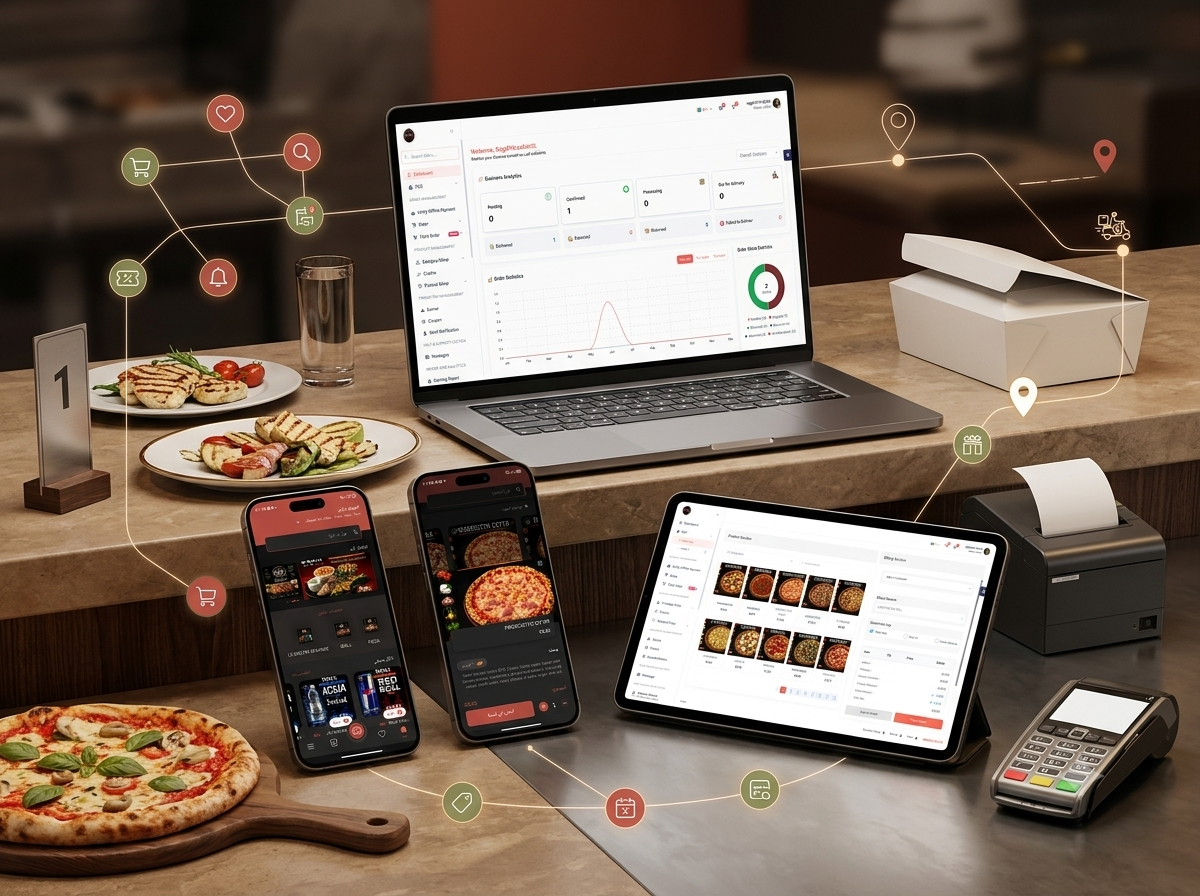
A connected restaurant ordering and operations platform combining a customer mobile application with online ordering, location-based delivery, food discovery, favourites, cart management, POS, table orders, menu administration, coupons, payment verification, notifications, customer support, and business analytics.
- Client : Oggi
- Duration : 7 Months
- year : 2026
- Google Play Link
Restaurant Ordering, Delivery, POS, and Operations Management in One Connected Platform
Oggi Pizza & Grill is a complete digital restaurant platform combining a customer mobile ordering application with a central administration and restaurant-operations dashboard.
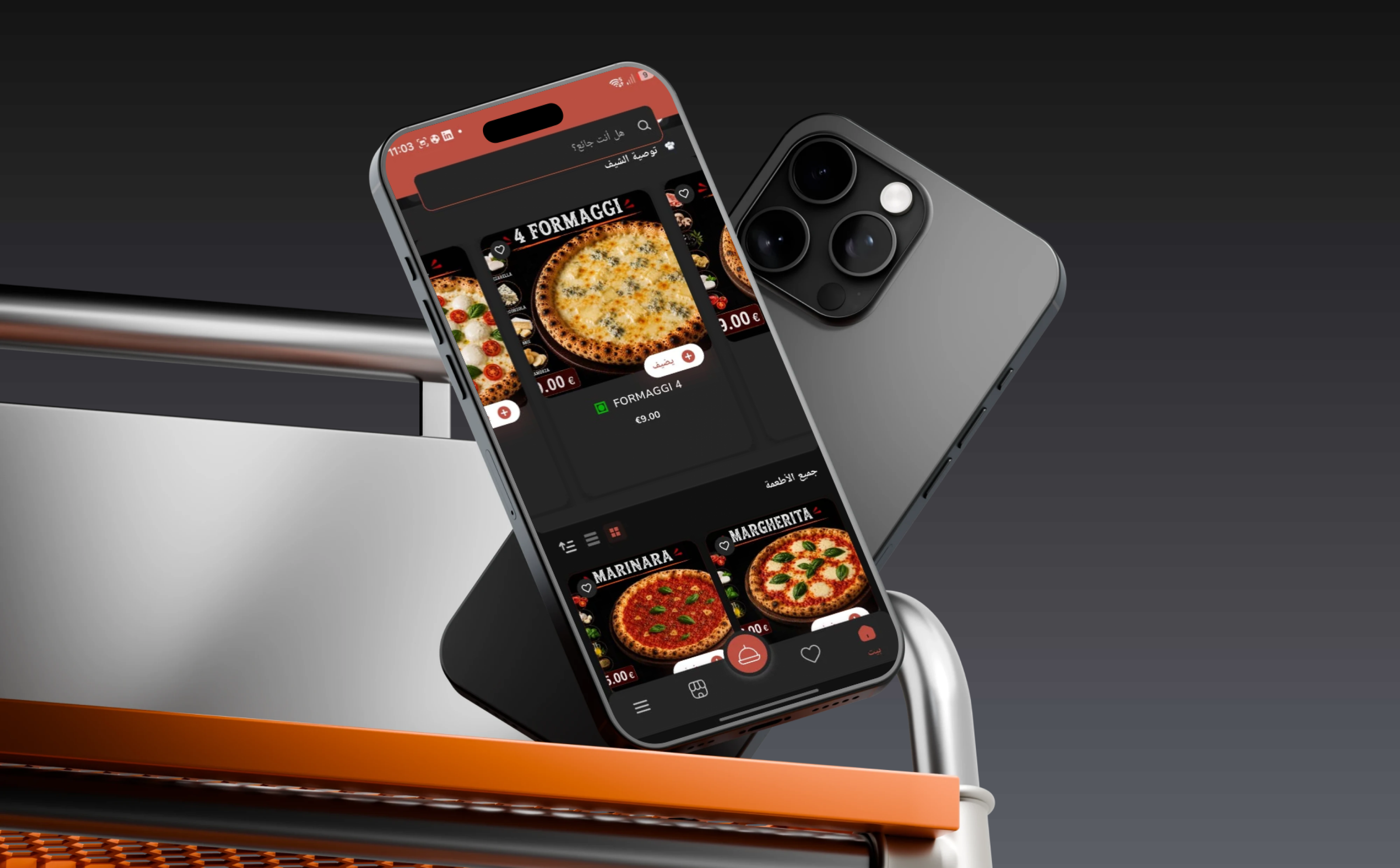
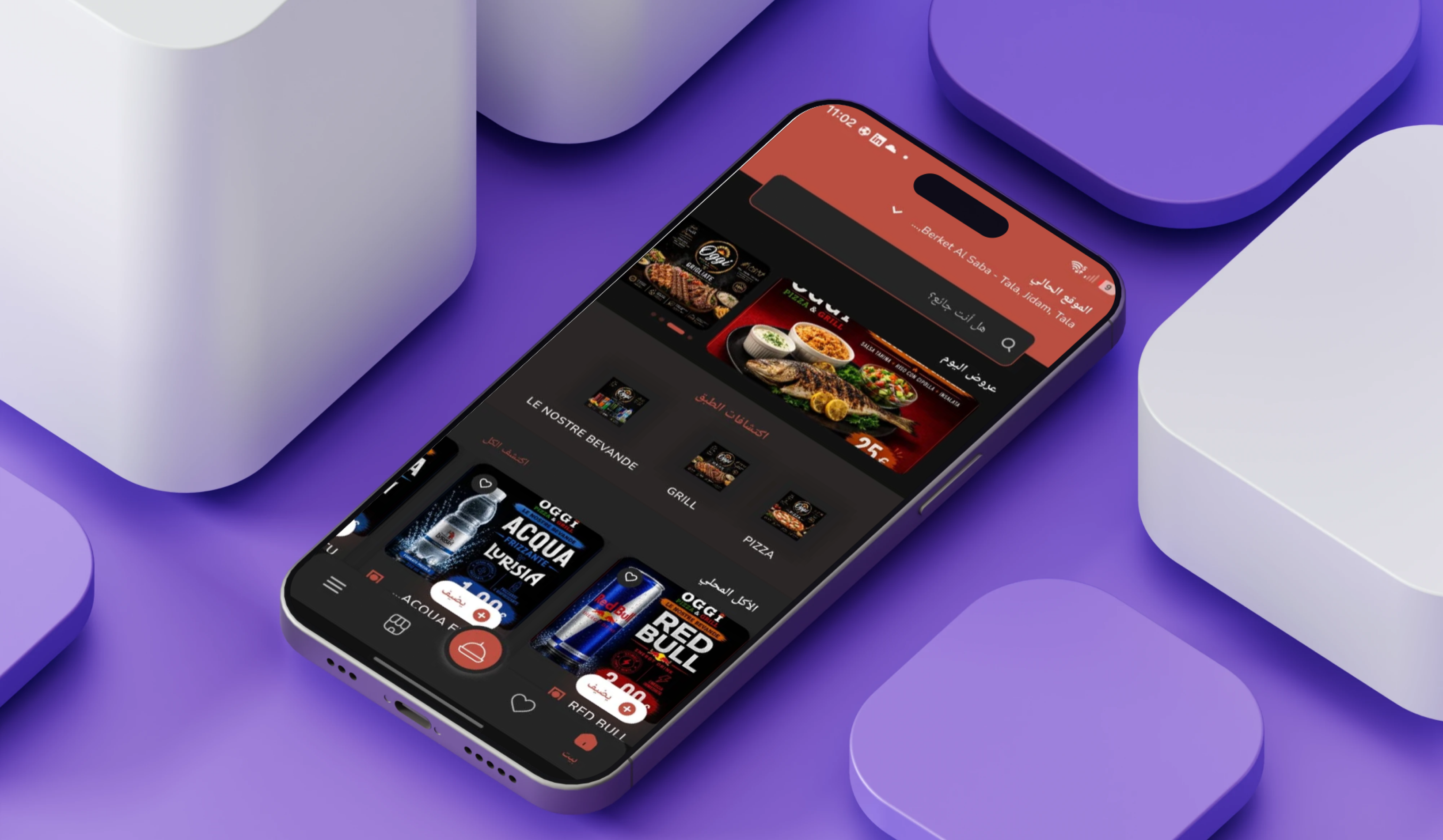
The customer application supports location selection, food discovery, menu search, daily offers, category browsing, chef recommendations, meal details, favourites, quantity selection, cart management, and delivery ordering.
The operational dashboard allows restaurant teams to manage online orders, takeaway purchases, dine-in tables, point-of-sale transactions, products, food categories, cuisines, add-ons, promotional banners, coupons, notifications, customer messages, and payment verification.
A complete order-status workflow connects pending, confirmed, processing, out-for-delivery, delivered, cancelled, returned, and failed-delivery orders.
Business reports and visual analytics help restaurant owners and administrators review revenue, order volume, fulfilment status, discounts, popular products, and operational performance across different periods.
 |
 |
Project Overview
Oggi Pizza & Grill was developed to connect customer ordering with restaurant operations through one central digital ecosystem.
Customers begin their journey by selecting a delivery location and can then browse promotional offers, food categories, available products, chef recommendations, or use search to locate a particular meal.
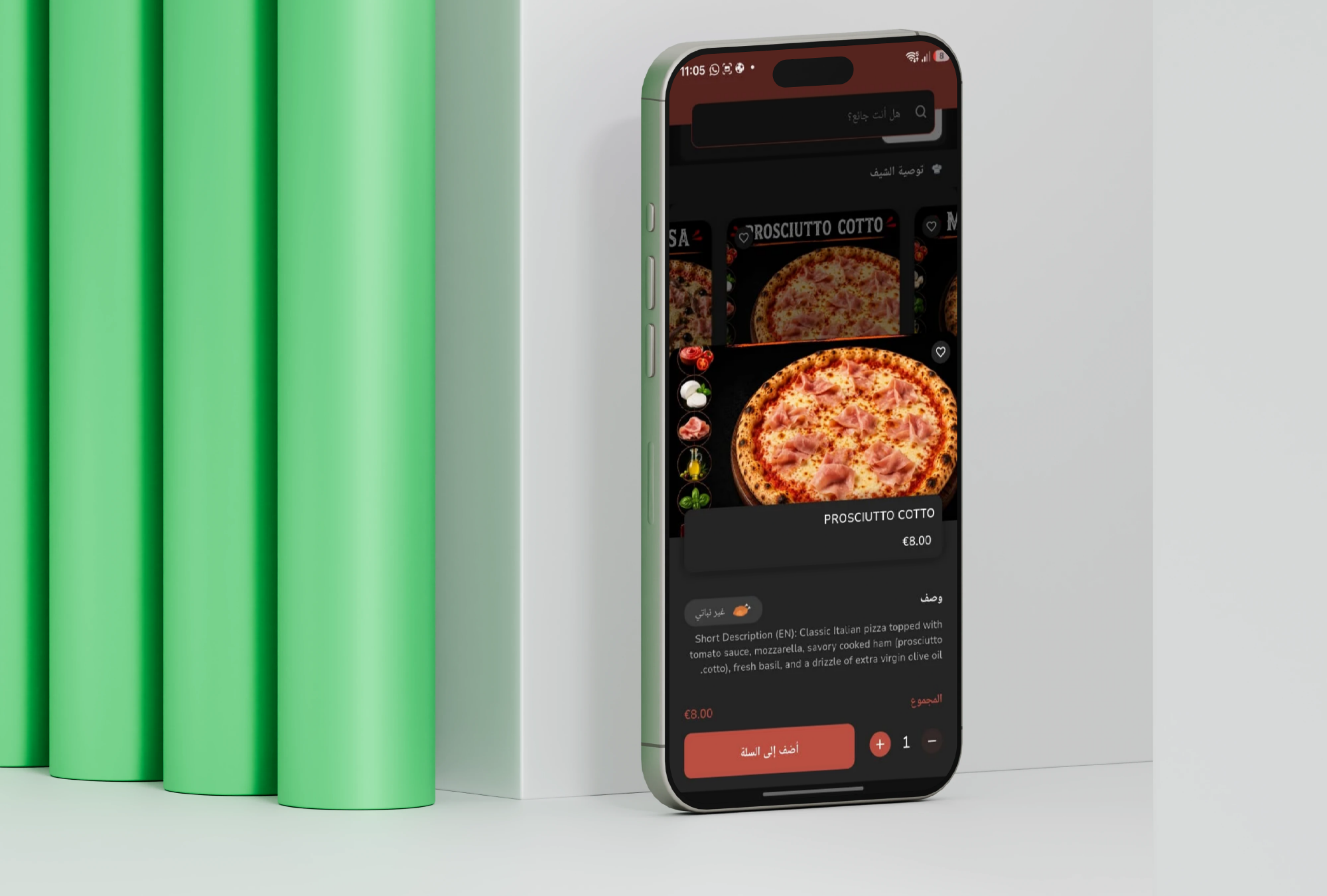
Product-detail screens present large meal images, names, pricing, dietary classification, descriptions, ingredients, quantity controls, and dynamically calculated totals.
Once an order is submitted, restaurant staff can review and confirm it, send it into preparation, update its status, and move it to delivery or customer collection.
The same ecosystem also supports in-branch transactions through a point-of-sale interface and dine-in orders associated with restaurant tables and active bills.
Marketing tools, including daily deals, promotional banners, coupons, chef recommendations, and notifications, allow the restaurant to highlight products and encourage repeat ordering.
The Business and Operational Challenge
Restaurants often use separate systems for mobile ordering, delivery, table service, point-of-sale transactions, menu administration, promotions, and reporting.
Disconnected tools can result in duplicated order information, inconsistent pricing, outdated menu availability, delayed preparation, and unclear communication between front-of-house, kitchen, cashier, and delivery teams.
Customers also need a clear way to review available meals, prices, ingredients, dietary classification, promotions, and delivery availability before placing an order.
Inaccurate delivery details can delay fulfilment or result in failed deliveries when ordering is not connected to customer location and service-area information.
Management teams require central reporting that distinguishes pending, active, completed, cancelled, returned, and failed-delivery orders while also reviewing earnings, discounts, and sales performance.
The project therefore required one connected platform combining customer ordering, restaurant operations, kitchen processing, delivery, POS, table service, marketing, support, and reporting.
The Thotix Solution
Designed and developed by Thotix, Oggi Pizza & Grill provides a unified mobile-ordering and restaurant-management ecosystem.
The customer application was structured around a simplified journey beginning with location and food discovery, continuing through search, categories, product details, favourites, and cart management, and ending with delivery and order submission.
The mobile experience is connected to a central dashboard responsible for products, categories, prices, availability, offers, coupons, orders, payments, notifications, messages, and reports.
Multiple order channels, including mobile orders, takeaway, POS, and dine-in table orders, are managed through the same operational environment.
Visual dashboards and reports provide restaurant administrators with a clear understanding of order volume, order status, revenue activity, and operational demand.
Customer Mobile Application Features
Current Delivery Location
- Active Location: Display the selected delivery destination on the home screen.
- Location Changes: Allow customers to choose a different address.
- Service Availability: Determine whether delivery is available in the selected area.
- Branch or Service Area: Support routing orders to the relevant operating area.
- Persistent Selection: Preserve the location throughout the ordering journey.
- Delivery Routing: Provide the restaurant with more accurate fulfilment information.
Food Search
- Meal Name Search: Find a required food item quickly.
- Pizza Search: Explore available pizza varieties.
- Grill Search: Locate grilled meals and dishes.
- Drink Search: Browse available beverages.
- Ingredient Search: Find products associated with selected ingredients.
- Category Search: Locate a particular food section.
- Chef Recommendations: Find featured restaurant products.
 |
 |
Today's Offers
- Promotional Banners: Present current products and campaigns.
- Discounted Meals: Highlight food available at promotional prices.
- Meal Bundles: Combine several items inside one offer.
- Limited-Time Deals: Promote offers available during selected periods.
- Seasonal Campaigns: Support special occasions and promotions.
- Offer Carousel: Display several campaigns in an organised format.
Food Category Discovery
- Drinks: Open beverage products.
- Grill: Browse grilled food categories.
- Pizza: Explore available pizza items.
- Additional Categories: Support new sections created through the dashboard.
- Category Image: Present a clear visual identity.
- Category Name: Display the food-group title.
- Menu Filtering: Show products associated with the selected category.
Available Food Products
- Product Image: Display every meal through a clear visual card.
- Product Name: Present the meal title.
- Price: Display the current amount.
- Favourite Action: Save the product for later.
- Add Action: Add the item directly to the cart.
- Current Availability: Identify whether the meal can be ordered for the selected location.
Chef Recommendations
- Signature Meals: Highlight dishes selected by the restaurant.
- Featured Pizzas: Promote special or unique products.
- Newly Launched Meals: Introduce new menu additions.
- Seasonal Products: Present items available during selected campaigns.
- Large Food Images: Use strong visuals for product discovery.
- Price Display: Present the current product value.
- Cart and Favourite Controls: Allow direct actions from recommendation cards.
Complete Food Menu
- All Products: Access the complete restaurant menu.
- Grid View: Display several items on one screen.
- List View: Present additional information for each meal.
- Product Sorting: Organise menu items according to available controls.
- Meal Details: Open the selected food page.
- Direct Add: Place a product in the cart from the menu.
- Favourite Saving: Build a personal list of meals.
Product Cards
- Food Image: Present the meal visually.
- Meal Name: Display the product title.
- Price: Show the selling value.
- Favourite Icon: Save the product.
- Add Button: Add the item to the cart.
- Dietary Indicator: Display vegetarian or non-vegetarian status.
- Promotion Information: Present related campaign or category information where configured.
Meal Details
- Primary Image: Display a large food image.
- Product Name: Present the complete meal title.
- Unit Price: Display the current selling price.
- Favourite Control: Save the meal to a personal collection.
- Dietary Classification: Identify vegetarian or non-vegetarian products.
- Product Description: Present ingredients and food information.
- Quantity Selection: Define the required number of units.
- Calculated Total: Update the product value according to quantity.
- Add to Cart: Confirm the configured product.
Dietary Classification
- Vegetarian Products: Identify meals configured without meat products.
- Non-Vegetarian Products: Identify meals containing meat or related ingredients.
- Clearer Selection: Help customers find products matching their preferences.
- Reduced Ordering Errors: Display dietary information before the product is purchased.
 |
 |
Meal Description
- Main Ingredients: Explain the components used in the dish.
- Cooking Style: Describe grilling, baking, or preparation methods.
- Toppings and Sauces: Present the main flavour components.
- Meat Type: Identify relevant meat ingredients.
- Flavour Profile: Provide a short description of the meal.
- Presentation: Add information useful before ordering.
Quantity Selection
- Increase Quantity: Order multiple units of the same product.
- Decrease Quantity: Reduce the selected amount.
- Minimum Validation: Prevent quantities below one.
- Total Recalculation: Update the amount automatically.
- Accurate Preparation: Send the correct quantity to restaurant staff.
Dynamic Product Total
- Quantity Calculation: Multiply unit price by the selected number.
- Instant Updates: Refresh the value when quantity changes.
- Configured Add-Ons: Include supported customisation costs.
- Transparent Pricing: Display the total before adding the meal to the cart.
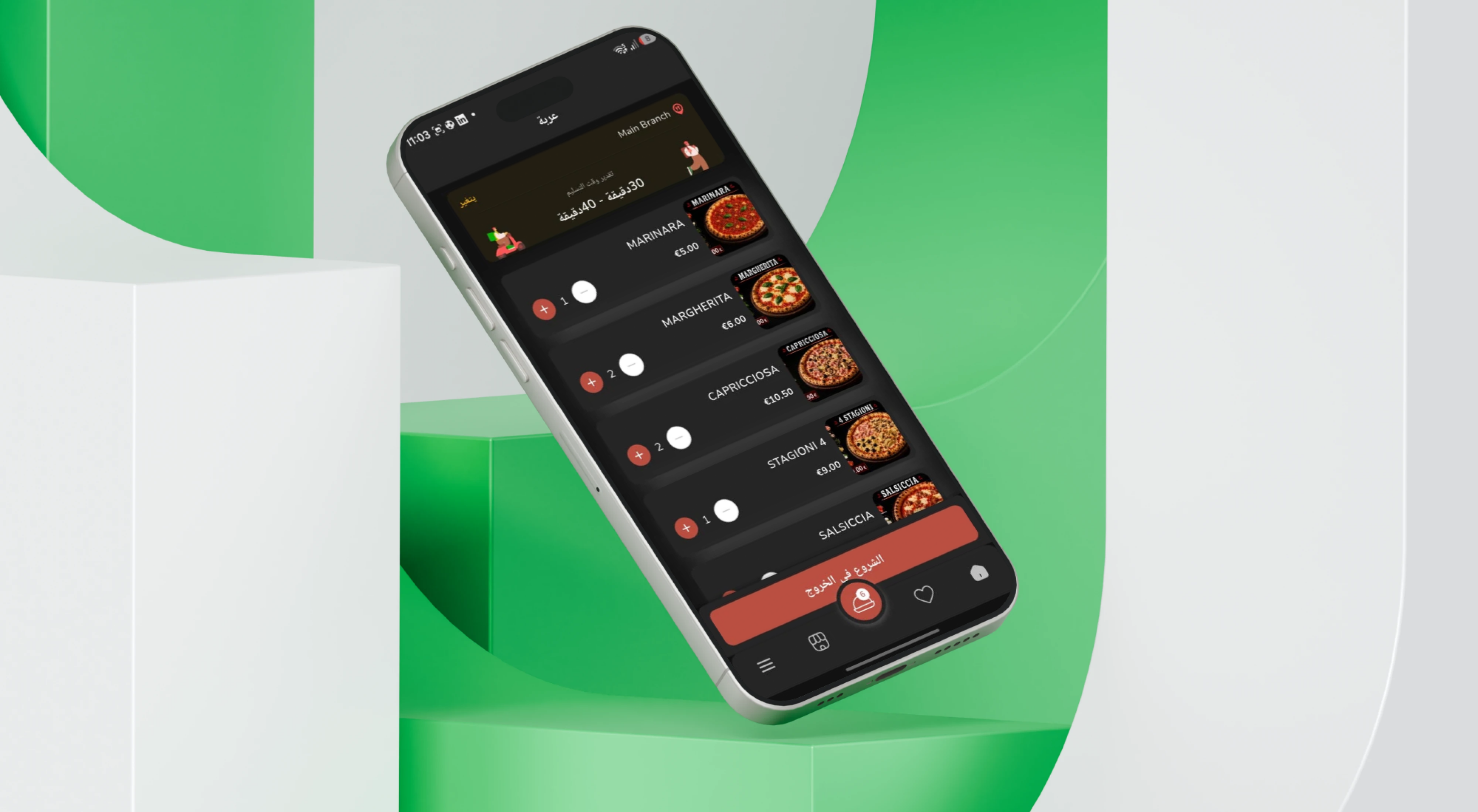
Add to Cart
- Product Information: Store meal name, image, and price.
- Selected Quantity: Maintain the customer’s chosen number.
- Item Total: Calculate the complete product value.
- Product Options: Store selected add-ons or customisations where supported.
- Continue Browsing: Add more meals before submitting the order.
Favourites
- Save Meals: Build a personal collection of preferred products.
- Save Pizzas and Drinks: Return to frequently ordered items.
- Faster Repeat Orders: Reduce the need to search again.
- Remove Products: Delete items from the favourite list.
- Move to Cart: Add saved products to a new order.
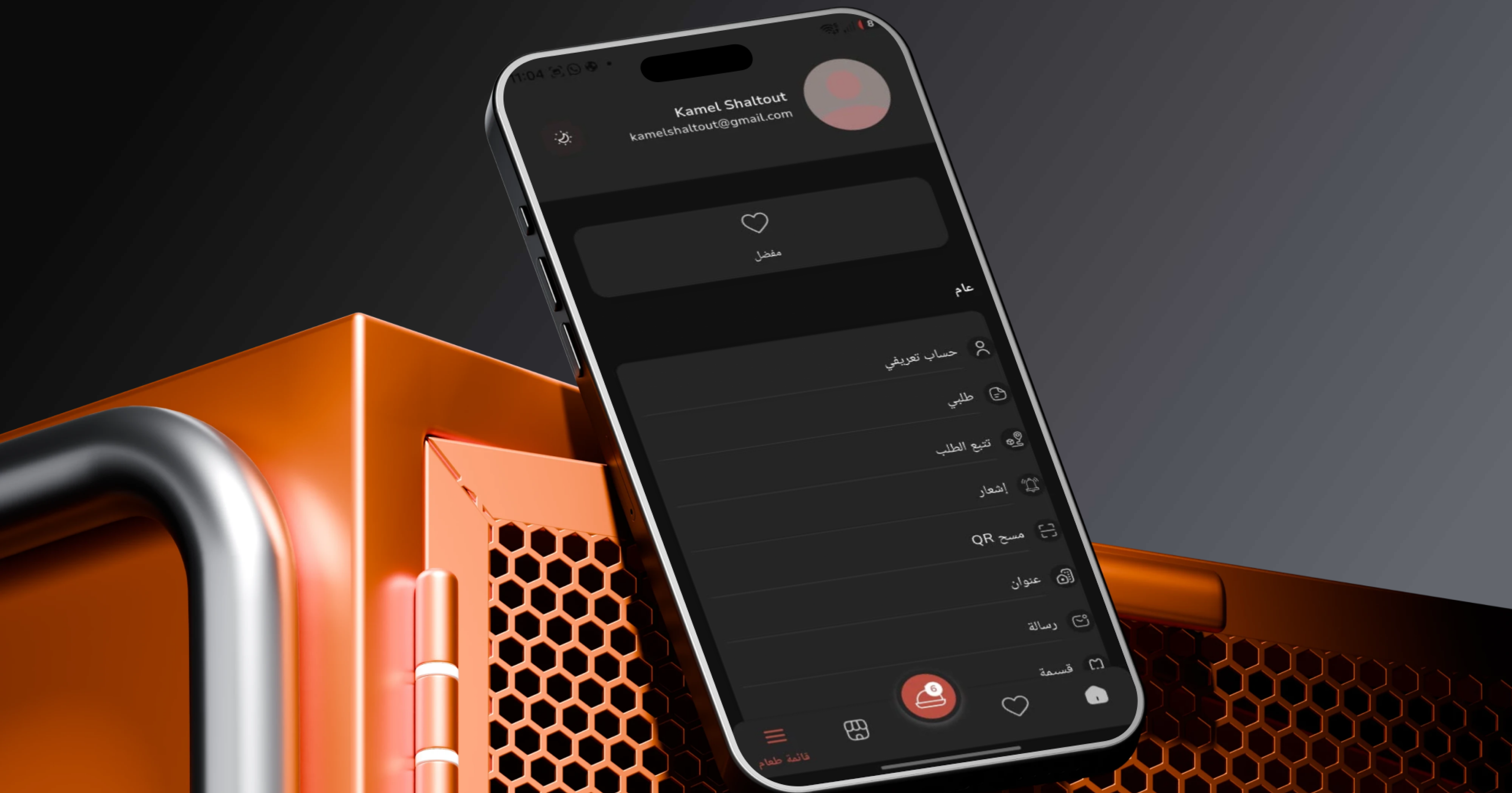
Bottom Navigation
- Menu: Access the complete food catalogue.
- Restaurant: Open the store or branch experience.
- Central Order Button: Open the active cart or ordering journey.
- Favourites: Review saved products.
- Home: Return to offers, categories, and recommendations.
Multi-Language Content
- Arabic Content: Present navigation and food information in Arabic.
- English Content: Support English product names and descriptions.
- Italian Meal Names: Maintain original menu naming where required.
- Translated Descriptions: Store multiple content versions.
- RTL Interface: Support Arabic navigation direction.
- Localised Notifications: Deliver customer communication in the appropriate language.
Customer Ordering Journey
- The customer opens the Oggi Pizza & Grill application.
- The application displays the current delivery location.
- The customer changes the location where necessary.
- Today's offers and promotional banners are reviewed.
- The customer searches for a meal or selects a food category.
- Chef recommendations or the complete menu are explored.
- The selected meal-details page is opened.
- The image, price, ingredients, and description are reviewed.
- The customer checks the vegetarian or non-vegetarian classification.
- The required quantity is selected.
- The application calculates the product total.
- The meal is added to the cart.
- The customer continues browsing or opens the cart.
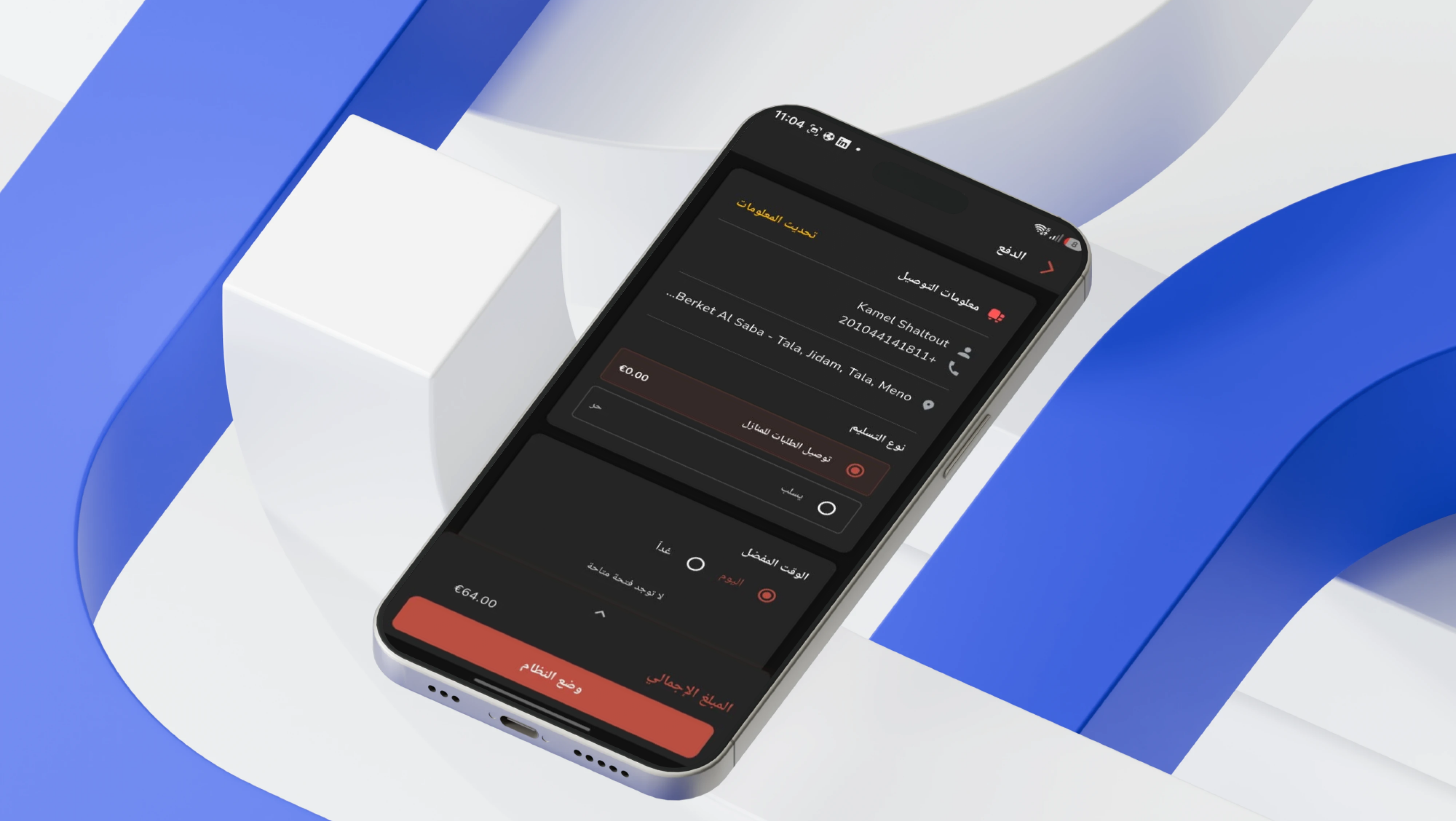
- Delivery and available payment information are provided.
- The order is submitted to the restaurant.
- Restaurant staff review and confirm the order.
- The order moves into preparation.
- The order becomes available for delivery or collection.
- The customer receives the completed order.
Restaurant Administration and Operations
Dashboard Overview
- Pending Orders: Display orders awaiting review.
- Confirmed Orders: Monitor approved customer orders.
- Processing Orders: Review meals currently in preparation.
- Out-for-Delivery Orders: Monitor active delivery activity.
- Delivered Orders: Present completed transactions.
- Cancelled Orders: Review cancelled purchases.
- Returned Orders: Monitor returned deliveries.
- Failed Deliveries: Identify orders that were not completed.
- Business Statistics: Provide a clear operating summary.
Business Analytics
- Pending-Order Count: Measure work requiring attention.
- Confirmed-Order Count: Review approved transactions.
- Processing Demand: Monitor current kitchen workload.
- Delivery Volume: Review orders in fulfilment.
- Completed Orders: Measure successful delivery and service.
- Cancellations and Returns: Analyse incomplete purchases.
- Failed Fulfilment: Review delivery problems.
- Overall Filter: Refresh statistics according to the selected view.
 |
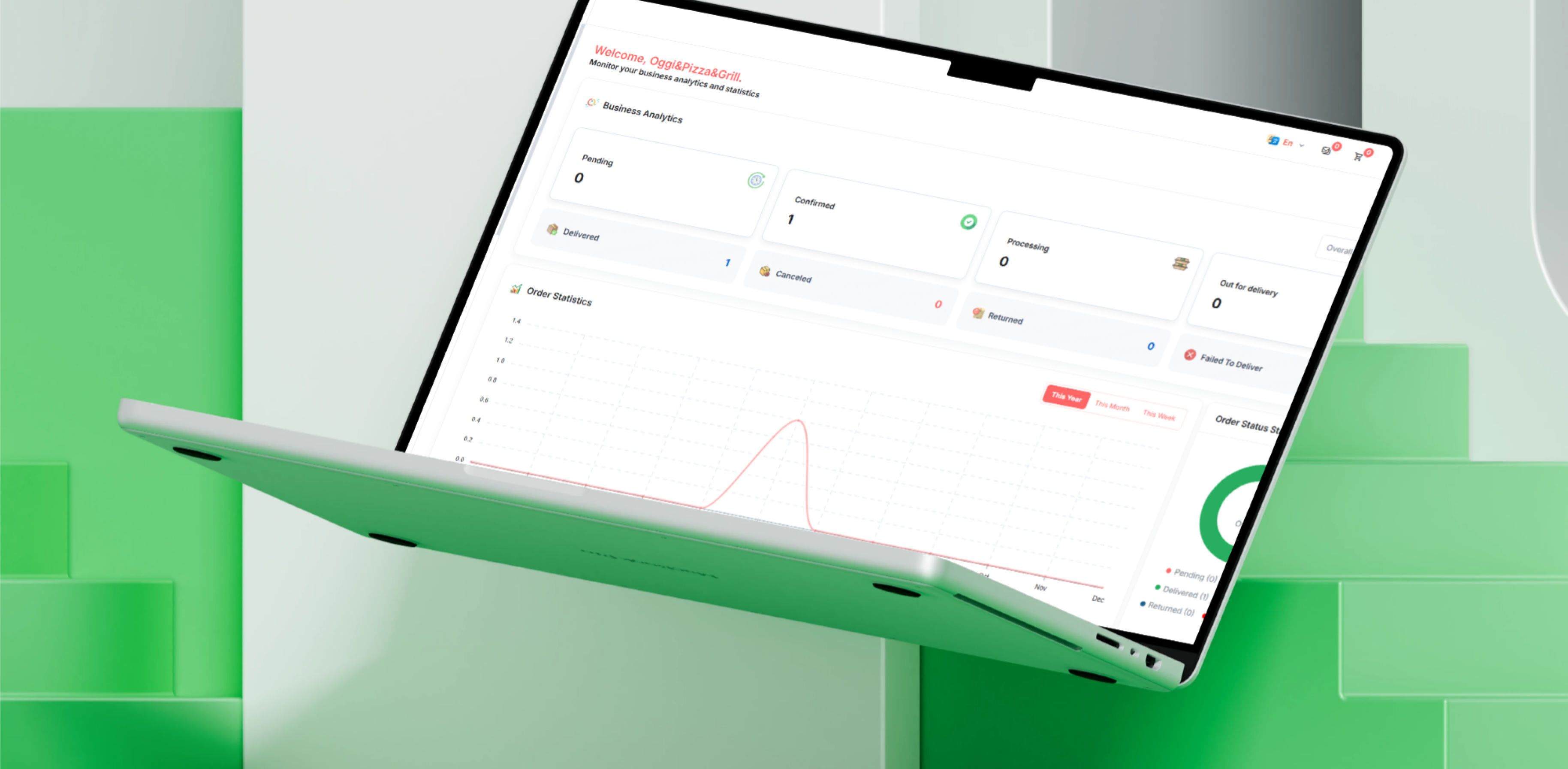 |
Order Statistics Chart
- Yearly Analysis: Review orders across the year.
- Monthly Analysis: Compare activity between months.
- Weekly Analysis: Review restaurant demand during the week.
- High-Order Periods: Identify peak activity.
- Slow Periods: Discover lower-demand periods.
- Growth Trends: Review changes in order volume.
- Seasonal Demand: Analyse campaign and occasion performance.
Order-Status Statistics
- Visual Summary: Present order distribution through a doughnut chart.
- Pending Orders: Display their share of total activity.
- Ongoing Orders: Review current operations.
- Delivered Orders: Present successful fulfilment.
- Cancelled Orders: Identify cancellation levels.
- Returned Orders: Monitor returned purchases.
- Failed Deliveries: Track uncompleted delivery activity.
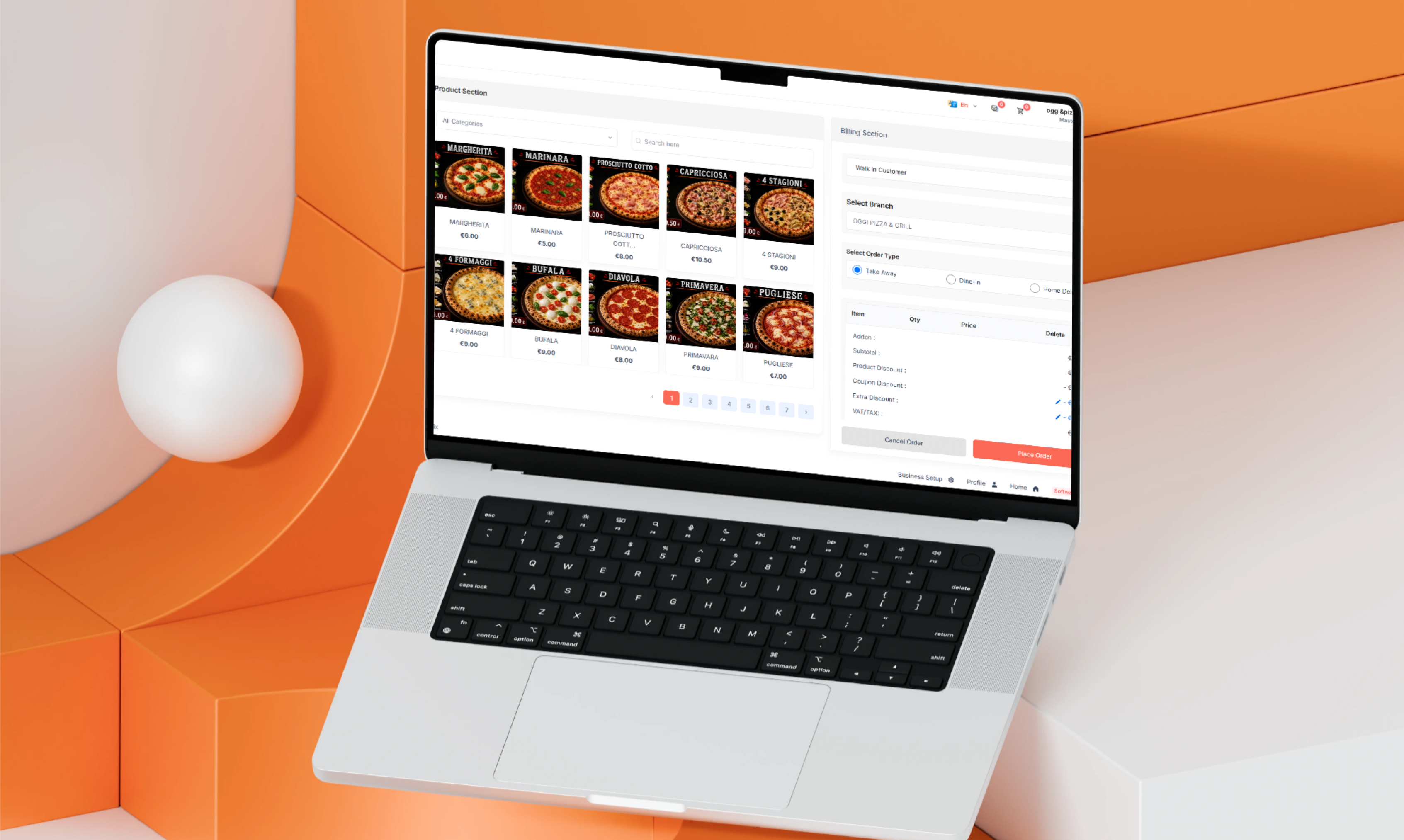
Point-of-Sale System
- Counter Orders: Create orders inside the restaurant.
- Walk-In Customers: Serve customers visiting the branch.
- Takeaway Orders: Create collection orders.
- Product Selection: Use the same central menu catalogue.
- Quantity Management: Define the number of every item.
- Bill Calculation: Calculate totals and applicable discounts.
- Payment Collection: Record the available payment method.
- Receipt Creation: Generate order information.
- Immediate Confirmation: Send the order into the operating workflow.
Offline Payment Verification
- Payment Review: Open the transaction connected to an order.
- Bank Transfers: Review submitted transfer information.
- Payment Evidence: Inspect provided files or details.
- Payment Approval: Confirm valid submissions.
- Payment Rejection: Reject incorrect or incomplete evidence.
- Order Connection: Update the financial status of the purchase.
- Processing Control: Prevent fulfilment before approval where configured.
Online Order Management
- Order Details: Review customer, products, quantities, and delivery information.
- Confirmation: Approve the order and begin fulfilment.
- Preparation: Move the order into kitchen processing.
- Out for Delivery: Update the status after dispatch.
- Delivered: Complete the order after customer receipt.
- Cancellation: Close an order before completion.
- Return: Record a returned order.
- Failed Delivery: Document unsuccessful fulfilment.
- Payment Status: Review the financial state alongside the operational state.
Table Orders
- Create Table Order: Open an active bill for a dine-in customer.
- Table Assignment: Connect the order to a restaurant table.
- Add Meals: Update the order during the dining session.
- Quantity Changes: Add or remove product units.
- Bill Updates: Recalculate the active table total.
- Order Closing: Complete the table after payment.
- Order-Type Separation: Distinguish dine-in, delivery, and takeaway orders.
Add-Ons and Customisations
- Extra Cheese: Add additional cheese options.
- Pizza Toppings: Select additional ingredients.
- Sauces: Add required sauce products.
- Side Dishes: Connect supporting products to the meal.
- Meal Customisation: Maintain selected modifications for every item.
- Additional Drinks: Add beverages to a product or order.
- Accurate Association: Connect each add-on to the correct product and order.
Menu and Product Management
Category Management
- Create Category: Add a new food-menu section.
- Edit Name: Update the category title.
- Category Image: Upload a visual for the mobile application.
- Display Order: Define the category sequence.
- Activation: Show or hide the section.
- Product Assignment: Connect meals with the correct category.
- Multi-Language Names: Maintain Arabic and English versions.
Cuisine Management
- Create Cuisine Type: Add a cooking style or origin.
- Assign Products: Connect meals with a cuisine.
- Food Filtering: Organise items according to cuisine type.
- Cuisine Labels: Present food-style information.
- Activation: Enable or disable cuisine options.
Product Setup
- Product Name: Maintain the meal title.
- Food Image: Upload the main product visual.
- Short Description: Provide a menu summary.
- Full Description: Maintain ingredients and details.
- Price: Set the unit selling value.
- Discounted Price: Add promotional pricing.
- Category: Connect the product to a menu section.
- Cuisine: Identify the food style.
- Dietary Status: Configure vegetarian or non-vegetarian information.
- Availability: Control whether the meal can be ordered.
- Chef Recommendation: Highlight the product in the application.
- Add-Ons: Connect available customisation options.
- Product Order: Define menu placement.
- Active Status: Enable or hide the product.
Product Availability
- Sold-Out Products: Disable items when ingredients are unavailable.
- Temporary Shortages: Hide meals for a limited period.
- Time-Based Menus: Support products available during configured hours.
- Branch Availability: Maintain service-area availability where supported.
- Seasonal Items: Activate products during selected campaigns.
- Discontinued Products: Remove products from ordering while retaining administrative information.
Chef Recommendation Management
- Product Selection: Choose meals recommended by the restaurant.
- Application Visibility: Display recommendations prominently.
- Recommendation Updates: Change products according to season or sales focus.
- Discovery Support: Direct customers towards selected meals.
- Sales Opportunity: Highlight products the restaurant wants to promote.
Promotion and Marketing Management
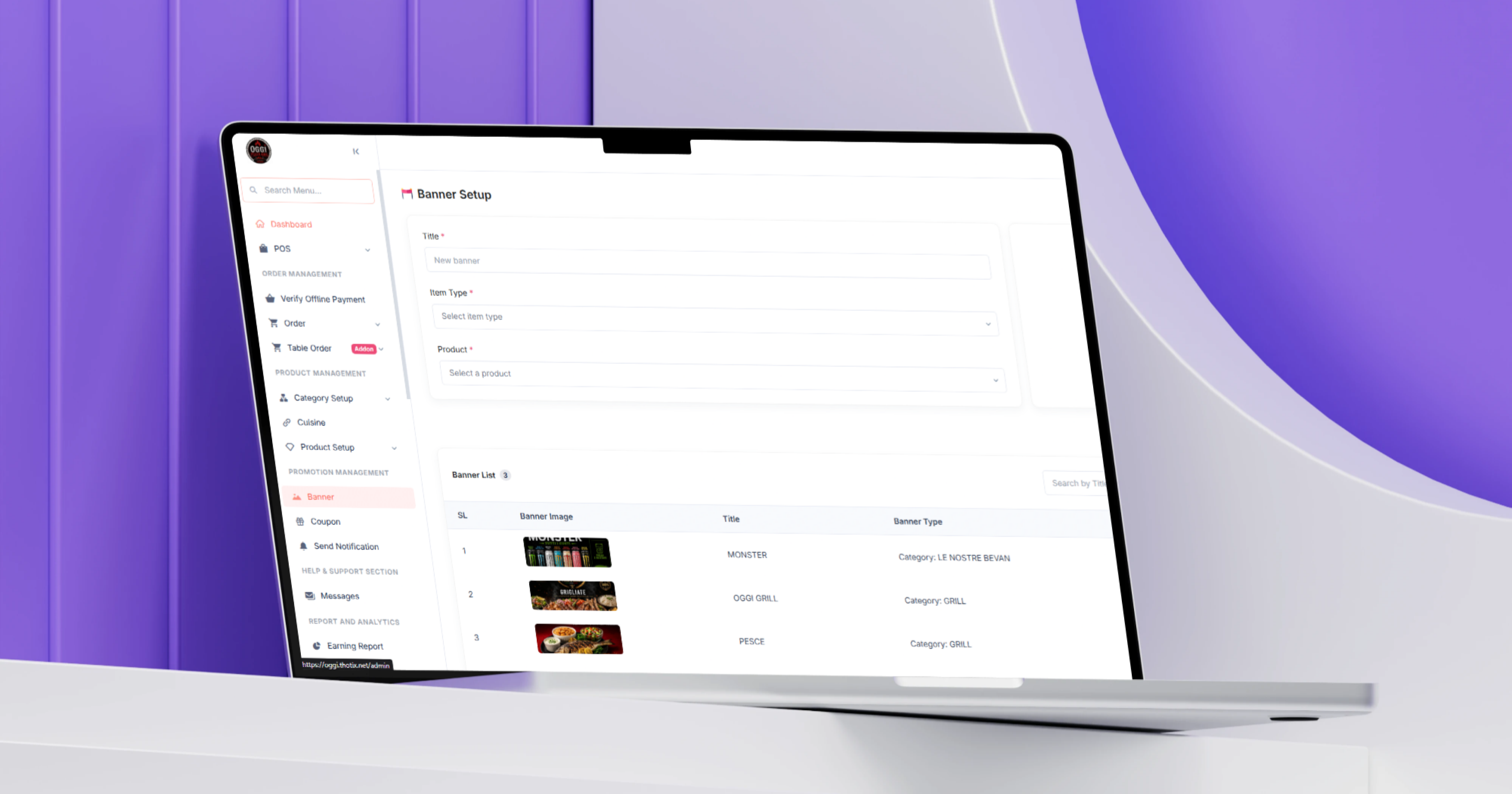
Banner Management
- Banner Image: Upload promotional visuals.
- Campaign Title: Connect the banner to an offer name.
- Destination Link: Open a product or category where configured.
- Campaign Scheduling: Define when the banner is visible.
- Product Promotion: Highlight selected meals.
- Seasonal Offers: Support occasion-based campaigns.
- Activation: Enable or disable the banner.
- Carousel Order: Define visual sequence.
Coupon Management
- Percentage Discount: Apply a percentage reduction.
- Fixed Discount: Reduce the order by a configured amount.
- Minimum Order: Require a selected purchase value.
- Start Date: Define when the coupon becomes active.
- Expiry Date: Close the campaign automatically.
- Usage Limit: Define the allowed number of redemptions.
- Customer Coupons: Create offers for selected users.
- Product Coupons: Apply discounts to specific meals.
- Category Coupons: Connect an offer to a menu section.
- Status: Enable or disable the coupon.
 |
 |
Customer Notifications
- New Meals: Announce menu additions.
- Daily Offers: Send promotional campaigns.
- Coupon Campaigns: Inform customers about discount codes.
- Order Updates: Communicate preparation and delivery status.
- Restaurant Announcements: Deliver operational information.
- Delivery Messages: Notify customers about fulfilment activity.
- Seasonal Promotions: Support occasion-based marketing.
Customer Service and Communication
Customer Messages
- Inquiry Review: Open messages submitted by customers.
- Order Questions: Respond to fulfilment inquiries.
- Complaint Management: Handle submitted problems.
- Product Questions: Explain ingredients and availability.
- Payment Support: Assist with financial issues.
- Delivery Concerns: Address delays and location problems.
- Communication History: Review previous customer conversations.
Reports and Analytics
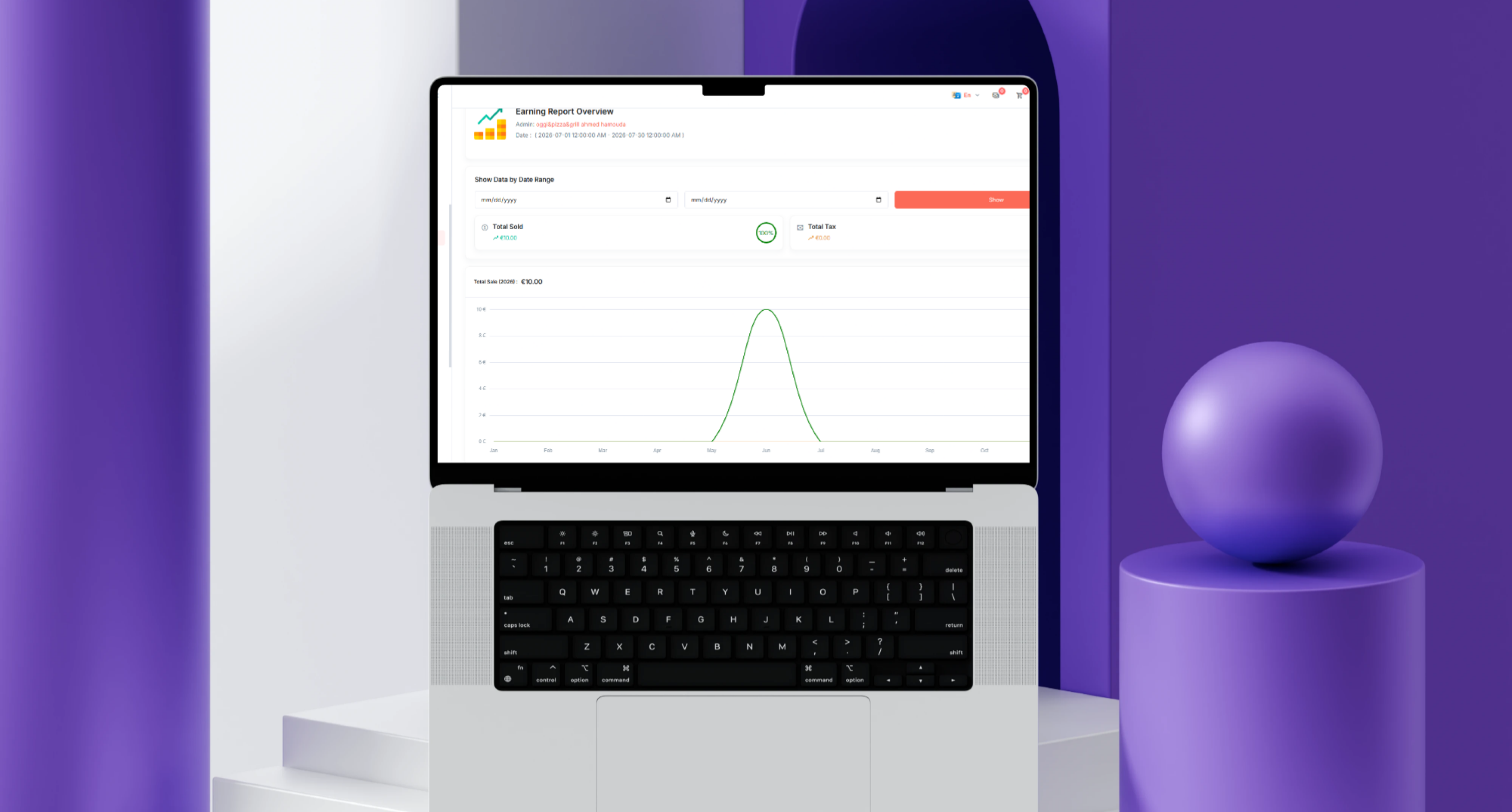
Earnings Report
- Total Earnings: Display recorded revenue.
- Earnings by Period: Review financial performance over time.
- Completed-Order Revenue: Analyse fulfilled sales.
- Delivery Revenue: Review values connected to delivery activity.
- Discounts: Calculate promotional reductions.
- Coupon Deductions: Review the effect of coupon campaigns.
- Payment-Method Totals: Segment revenue according to payment type.
- Sales Trends: Monitor growth and decline.
Order Report
- Total Orders: Display all recorded purchases.
- Orders by Status: Segment activity according to the workflow.
- Orders by Period: Analyse order volume over time.
- Delivery Orders: Review external fulfilment.
- Dine-In Orders: Review restaurant-table transactions.
- POS Orders: Analyse counter and takeaway sales.
- Cancelled Orders: Review cancellation activity.
- Returned Orders: Monitor returned purchases.
- Failed Deliveries: Track unsuccessful fulfilment.
- Best-Selling Products: Identify the most frequently ordered meals.
Period Filters
- Current Day: Review daily restaurant activity.
- Week: Present a seven-day summary.
- Month: Analyse monthly performance.
- Year: Review annual results.
- Custom Date Range: Select specific start and end dates.
Main User Types
Restaurant Customer
Browses meals and offers, searches the menu, selects quantities, saves favourites, adds products to the cart, and places delivery orders.
Returning Customer
Uses favourites and previous preferences to reach frequently ordered meals faster.
Dine-In Customer
Receives an order connected to a restaurant table, with products and bill totals updated throughout the dining session.
Cashier
Uses the POS system to create counter and takeaway orders, calculate bills, and record payments.
Kitchen Staff
Receive confirmed orders, prepare meals, and review quantities, products, and selected add-ons.
Delivery Staff
Receive prepared orders, review delivery information, and update order status during fulfilment.
Customer Support Agent
Handles inquiries, complaints, payment questions, product information, and delivery concerns.
Restaurant Administrator
Manages products, categories, promotions, coupons, notifications, orders, payments, customer communication, and reports.
Business Owner
Reviews earnings, order volume, sales trends, fulfilment performance, and operational analytics.
Connected Digital Ecosystem
Customer Mobile Application
Supports location selection, food discovery, search, categories, offers, chef recommendations, product details, favourites, cart management, and ordering.
Restaurant Administration Dashboard
Centralises products, categories, orders, promotions, payments, communication, and reporting.
Point-of-Sale System
Manages counter sales, takeaway orders, quantities, bills, and in-branch payment handling.
Table-Order System
Connects active orders with restaurant tables, products, add-ons, bills, and checkout.
Order Processing Engine
Manages confirmation, preparation, delivery, completion, cancellation, return, and failed-delivery states.
Marketing Engine
Manages daily offers, banners, coupons, chef recommendations, and customer notifications.
Reporting and Analytics
Provides earnings, order, fulfilment, and sales-trend reporting across selected periods.
Administration Dashboard Capabilities
- Manage pending, confirmed, and processing orders.
- Monitor out-for-delivery and completed orders.
- Manage cancellations, returns, and failed deliveries.
- Create POS and takeaway orders.
- Manage table orders and active bills.
- Review offline payments and transfer evidence.
- Create and maintain food categories.
- Manage cuisines and food styles.
- Manage products, images, descriptions, and prices.
- Configure vegetarian and non-vegetarian information.
- Enable or disable menu products.
- Manage chef recommendations.
- Maintain add-ons and product customisation.
- Create promotional banners and campaigns.
- Configure coupons and usage rules.
- Send customer notifications.
- Respond to customer messages and complaints.
- Review earnings and order reports.
- Analyse order status and sales trends.
Business Value
- Combines customer ordering and restaurant operations in one platform.
- Supports delivery, takeaway, dine-in, and POS orders.
- Simplifies food discovery and menu browsing.
- Promotes products through offers and chef recommendations.
- Allows customers to save favourite meals.
- Presents meal images, descriptions, and prices clearly.
- Improves order accuracy through quantity and add-on controls.
- Centralises product, category, and cuisine management.
- Organises the complete order lifecycle.
- Supports manual and offline payment verification.
- Enables banners, coupons, and notification campaigns.
- Improves customer support through direct messaging.
- Provides earnings and order analytics.
- Helps management understand operational and sales performance.
- Creates a scalable foundation for more branches, meals, and delivery zones.
Technology Overview
- Platform Type: Restaurant ordering and operations platform.
- Customer Channel: Mobile food-ordering application.
- Operational Channel: Web-based Administration Dashboard.
- Commerce Features: Menu, cart, quantities, orders, offers, and coupons.
- Restaurant Features: POS, table orders, menu setup, add-ons, and cuisine management.
- Order Workflow: Pending, confirmed, processing, out for delivery, delivered, cancelled, returned, and failed.
- Marketing: Banners, coupons, recommendations, and notifications.
- Reporting: Earnings, orders, business analytics, and status charts.
- Support: Customer messages and offline-payment verification.
- Localisation: Arabic-oriented customer experience with multilingual food content.
- Architecture: Connected mobile, POS, table-order, administration, and reporting ecosystem.
Project Highlights
- Location-based restaurant ordering.
- Mobile food search.
- Daily offers and promotional banners.
- Food-category discovery.
- Chef recommendations.
- Complete menu browsing.
- Detailed meal pages.
- Vegetarian and non-vegetarian indicators.
- Quantity selection and dynamic totals.
- Favourites and shopping cart.
- Delivery and takeaway orders.
- Point-of-sale operations.
- Dine-in table orders.
- Add-ons and meal customisation.
- Offline-payment verification.
- Category, cuisine, and product management.
- Coupons and notifications.
- Customer messages.
- Earnings and order reports.
- Complete order-status workflow.
Conclusion
The Oggi Pizza & Grill project demonstrates Thotix’s ability to develop connected restaurant platforms that combine customer ordering with daily restaurant operations.
By bringing together location selection, food discovery, search, promotions, chef recommendations, product details, favourites, cart management, and delivery ordering, the mobile experience provides customers with a clear ordering journey.
The restaurant dashboard complements the customer application with POS, table orders, order processing, payment verification, menu administration, promotions, customer support, and business reports.
The platform provides Oggi Pizza & Grill with a scalable digital foundation for increasing online ordering, streamlining restaurant operations, improving customer service, and supporting future expansion across branches and delivery areas.
Designed and developed by Thotix.
From Ancient Wisdom to Future Intelligence.